How to send bills on WhatsApp and e-mail from KeyPrime
KeyPrime sends bills and reports by WhatsApp and e-mail. This lesson sets up the mail account and WhatsApp once, so staff send a bill with one key.
For: Owners and administrators who set up how KeyPrime sends bills and reports. Shown in KeyPrime 7.3.4.7.
What you will learn
- Open Configuration Setting
- Set up the mail account and send a test mail
- Set up free WhatsApp on the computer
- Enter the WhatsApp API details
- Send bills with Ctrl+M and Ctrl+A
1. Configuration Setting
Open the APPLICATION menu, then Configuration Setting. You can also press Ctrl+F1 and type settings.
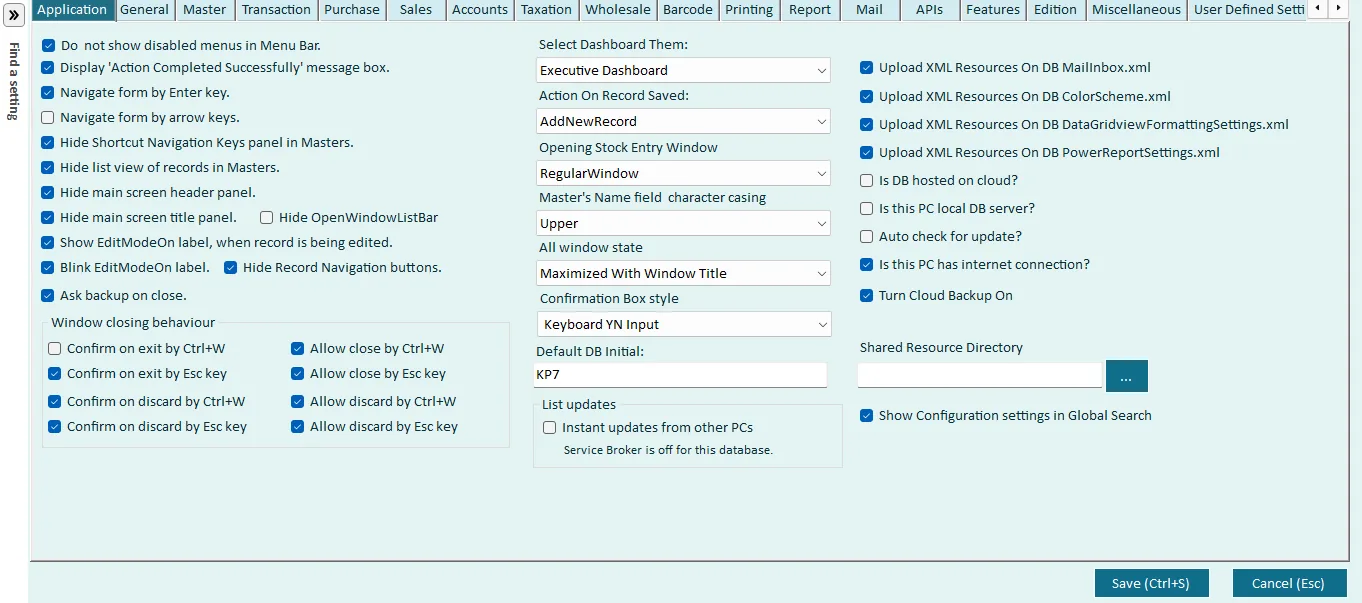
Configuration Setting opens on the Application tab. The other tabs run along the top. You need three of them.
2. E-mail
Start with e-mail. Click the Mail tab. Its Email Settings hold your mail account.
Enter the business Email ID and its password. Check the SMTP Host, Port and SSL settings given by your mail provider. A Mail Footer Message is added to every mail. Then enter an address in Send Test Mail To, and send a test mail.
- Enter the business Email ID and its password
- Check SMTP Host, Port and SSL with your mail provider
- Optionally add a Mail Footer Message
- Enter an address in Send Test Mail To, and send a test mail
If the test mail fails, check three things. Most often, the mail password has changed. Then check the SMTP settings with your provider, and the internet connection.
- Check that the app password has not been changed
- Check SMTP Host, Port and SSL with your provider
- Check that the computer is connected to the internet
3. Free WhatsApp
KeyPrime can send WhatsApp in two ways. Free WhatsApp uses WhatsApp on the computer. The WhatsApp API is a paid business service that sends without user interaction.
- Free WhatsApp: uses WhatsApp on this computer
- WhatsApp API: a paid service that sends without user interaction
- Either way, messages go to the mobile number in the master record
For free WhatsApp, install WhatsApp from the Microsoft Store, or use WhatsApp in a browser. Sign in by scanning the QR code with your phone. Keep it running.
- Install WhatsApp from the Microsoft Store, or use it in a browser
- Sign in by scanning the QR code with your phone
- Keep WhatsApp running
- Choose the options on the Features tab
Then open the Features tab. Choose the options you need: Send free WhatsApp without user interaction, Use WhatsApp Browser to send free WhatsApp, and Save WhatsApp Profile.
4. WhatsApp API
For the paid WhatsApp API, get the Url, Token and Instance Id from your provider. Then open the APIs tab, WhatsApp Settings, and enter all three.
When you have finished, press Ctrl+S to save the settings.
5. Send bills
Now try it. In Counter Sale, Save & WhatsApp saves the bill and sends it to the customer in one step.
Messages go to the customer's mobile number. Make sure every customer, supplier and patient has the correct mobile number in their record.
In any print preview, press Ctrl+M to e-mail, or Ctrl+A to send on WhatsApp. Every report window can send the report as a PDF. The Sales tab can also send bills automatically on save.
- Any print preview: Ctrl+M for e-mail, Ctrl+A for WhatsApp
- Any report window: Send the report by email or Send the report on WhatsApp
- Automatically on save: Configuration Setting > Sales
Keys at a glance
| Press | To |
|---|---|
| Ctrl+F1 | Open Configuration Setting |
| Ctrl+S | Save the settings |
| Ctrl+M | E-mail from a print preview |
| Ctrl+A | WhatsApp from a print preview |
More detail, with every option of the screen, is in the Knowledge Center: read the full guide.
More lessons
- How to make a retail bill in KeyPrime
- How to make a GST wholesale (B2B) invoice in KeyPrime
- How to enter a purchase bill with batch and expiry
- How to import a supplier's bill instead of typing it
- How to generate purchase orders automatically
- How to prepare GST returns and export GSTR-1 from KeyPrime
- How to set up the KeyPrime 360 mobile app