How to generate purchase orders automatically
Generate Purchase Order works out what to order from your sales and stock, so you don’t write orders by hand. Order from one supplier or from many at once.
For: Purchase staff and owners who place orders with suppliers. Shown in KeyPrime 7.3.4.7.
What you will learn
- Open Generate Purchase Order with Alt+G
- Generate an order for one supplier with Ctrl+G
- Choose the PO Generate Options
- Order from many suppliers at once
- Review, save, print or email the order
1. Open the screen
To open the screen, press Alt+G. You can also use the menu: PURCHASE, then Generate Purchase Order.
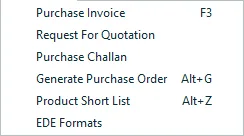
In the PURCHASE menu, you see it listed with its key, Alt+G.
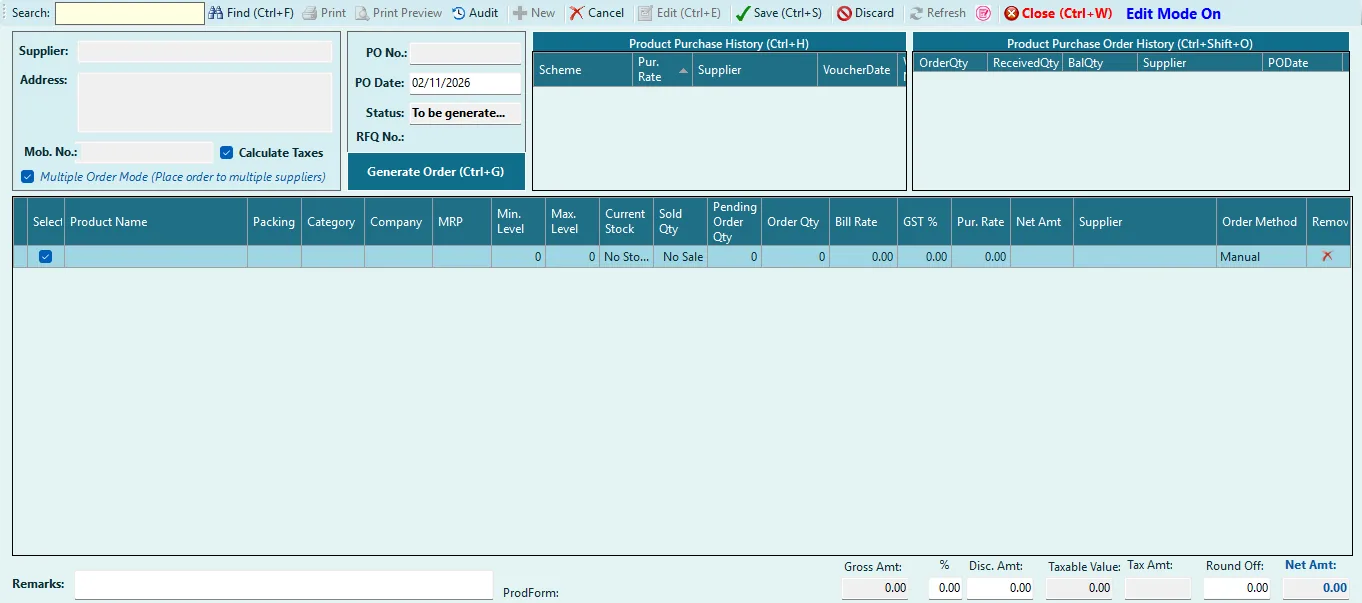
This is Generate Purchase Order. KeyPrime works out the order quantities from sales, stock levels, the short book and pending orders.
At the top right, KeyPrime shows the purchase history and the purchase order history of the row you are on. Use them to choose the supplier and check the quantity.
2. Order for one supplier
To order from one supplier, make sure Multiple Order Mode is off. Then select the supplier.
Click Generate Order, or press Ctrl+G. The PO Generate Options window opens.
3. PO Generate Options
Tick the options you want. You can use them one at a time or together. For On Sales, choose the period. To order only some companies or categories, use the filters. Then click Generate.
- Tick the options you want, one or several
- For On Sales, choose the period
- Use Filter Company or Filter Category if needed
- Click Generate
With On Sales and Less Current Stock, if 100 were sold and 30 are in stock, KeyPrime orders 70. On Min Max Level orders up to the maximum level when stock falls below the minimum. On User's Shortlist adds the products in the Digital Short Book. Less pending order qty. subtracts what is still pending, so you do not order twice.
- On Sales + Less Current Stock: 100 sold, 30 in stock, order 70
- On Min Max Level: maximum level minus current stock
- On User's Shortlist: products in the Digital Short Book
- Less pending order qty.: 10 generated, 4 pending, order 6
4. Review and save
Now review the rows. The Order Method column shows how each quantity was worked out, and each method has its own row colour.
Check the Order Qty of each row against the stock, the sales and the history before you save.
When the order looks right, press Ctrl+S to save the purchase order.
5. Many suppliers at once
To order from many suppliers in one go, turn on Multiple Order Mode, then press Ctrl+G and generate as before. KeyPrime picks a supplier for each product from its purchase history.
Check the supplier given to each row, and change it where needed. When you save, KeyPrime saves a separate purchase order for each supplier.
To print or email a saved order, open the Purchase Order screen, press Ctrl+F and select the order. Then click Print Preview, or Send Email to send it to the supplier.
- Open the Purchase Order screen
- Press Ctrl+F and select the order
- Click Print Preview, or Send Email to the supplier
Keys at a glance
| Press | To |
|---|---|
| Alt+G | Open Generate Purchase Order |
| Ctrl+G | Generate the order |
| Ctrl+S | Save the purchase order |
| Ctrl+F | Find a saved order |
More detail, with every option of the screen, is in the Knowledge Center: read the full guide.
More lessons
- How to make a retail bill in KeyPrime
- How to make a GST wholesale (B2B) invoice in KeyPrime
- How to enter a purchase bill with batch and expiry
- How to import a supplier's bill instead of typing it
- How to prepare GST returns and export GSTR-1 from KeyPrime
- How to set up the KeyPrime 360 mobile app
- How to send bills on WhatsApp and e-mail from KeyPrime