How to make a retail bill in KeyPrime
Counter Sale is where a medical store or retail shop bills at the counter. This lesson shows the fastest way to bill, with the keys your staff use every day.
For: New counter and sales staff; existing users who want the fastest way to bill. Shown in KeyPrime 7.3.4.7.
What you will learn
- Open Counter Sale with F4
- Add products by scanning or searching
- Enter the patient and the doctor
- Give a bill discount
- Save, print or send the bill on WhatsApp
1. Open Counter Sale
To open Counter Sale, press F4 from anywhere in KeyPrime. You can also use the menu: SALES, then Counter Sale (Retail).
2. The screen
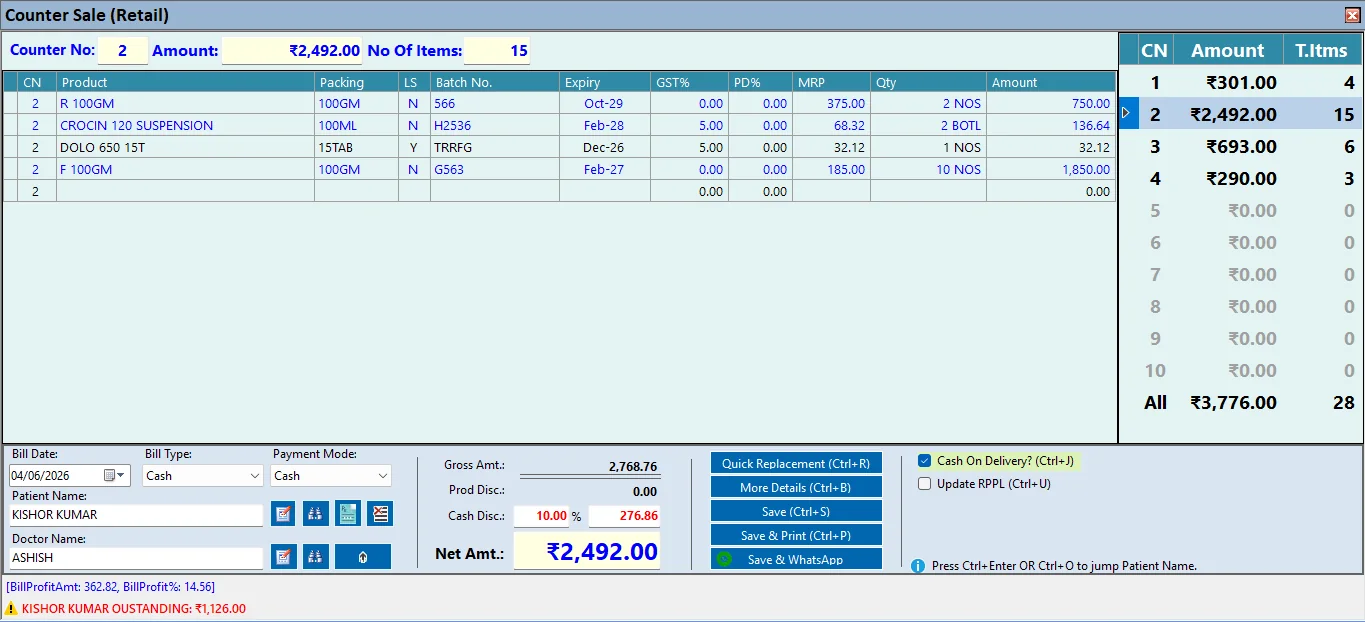
This is the Counter Sale screen. It has three main parts.
In the middle is the product grid, where you add the items of the bill.
At the bottom, you enter the bill details, such as bill type, payment mode, patient and doctor, and you see the totals.
On the right are the counters. You have up to ten, so you can keep one customer's bill open while you serve the next.
3. Add products
Let's make a bill. In the product grid, scan the barcode on the pack, and KeyPrime adds the product. No barcode? Type part of the name, the short code, the MRP or the shelf, and pick it from the list.
Check the batch and the quantity, then press Enter to go to the next line. Add every item the same way.
4. Patient and doctor
When all the items are in, press Ctrl+Enter or Ctrl+O to jump to Patient Name. The screen reminds you of this key at the bottom.
Type the patient or customer name, and the doctor's name if the bill needs it.
If the customer has unpaid bills, a red alert appears in the status bar. Point at it to see the details.
5. Discount and save
For a discount on the whole bill, enter it in Cash Disc., as a percentage or an amount. The net amount changes at once.
Now save the bill. Press Ctrl+S to save, or Ctrl+P to save and print. To send the bill to the customer's WhatsApp, click Save & WhatsApp.
Keys at a glance
| Press | To |
|---|---|
| F4 | Open Counter Sale |
| Scan | Add a product |
| Ctrl+Enter | Go to Patient Name |
| Ctrl+S | Save the bill |
| Ctrl+P | Save and print |
More detail, with every option of the screen, is in the Knowledge Center: read the full guide.
More lessons
- How to make a GST wholesale (B2B) invoice in KeyPrime
- How to enter a purchase bill with batch and expiry
- How to import a supplier's bill instead of typing it
- How to generate purchase orders automatically
- How to prepare GST returns and export GSTR-1 from KeyPrime
- How to set up the KeyPrime 360 mobile app
- How to send bills on WhatsApp and e-mail from KeyPrime