How to import a supplier's bill instead of typing it
When suppliers send their bills as CSV files or by e-mail, Online Purchase brings them in. You map a new product once; the next bill from that supplier comes in by itself.
For: Store and purchase staff whose suppliers send bills as CSV files or by email. Shown in KeyPrime 7.3.4.7.
What you will learn
- Open Online Purchase with Ctrl+I
- Bring in a CSV file from a folder or an email
- Select the supplier and the file format
- Map the products KeyPrime could not match
- Check the bill and save it
1. Open Online Purchase
Online Purchase works inside Purchase Invoice. Press F3, or use the menu: PURCHASE, then Purchase Invoice.
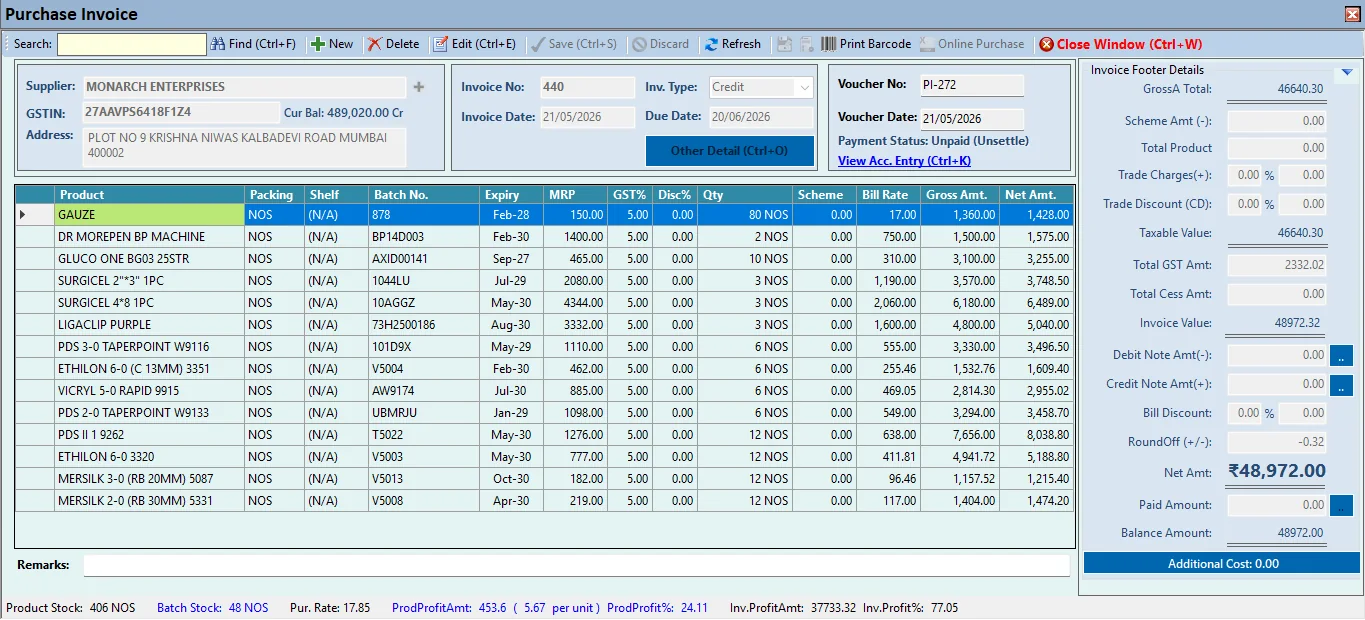
In Purchase Invoice, click Online Purchase on the navigation bar, or press Ctrl+I.
2. Bring in the bill
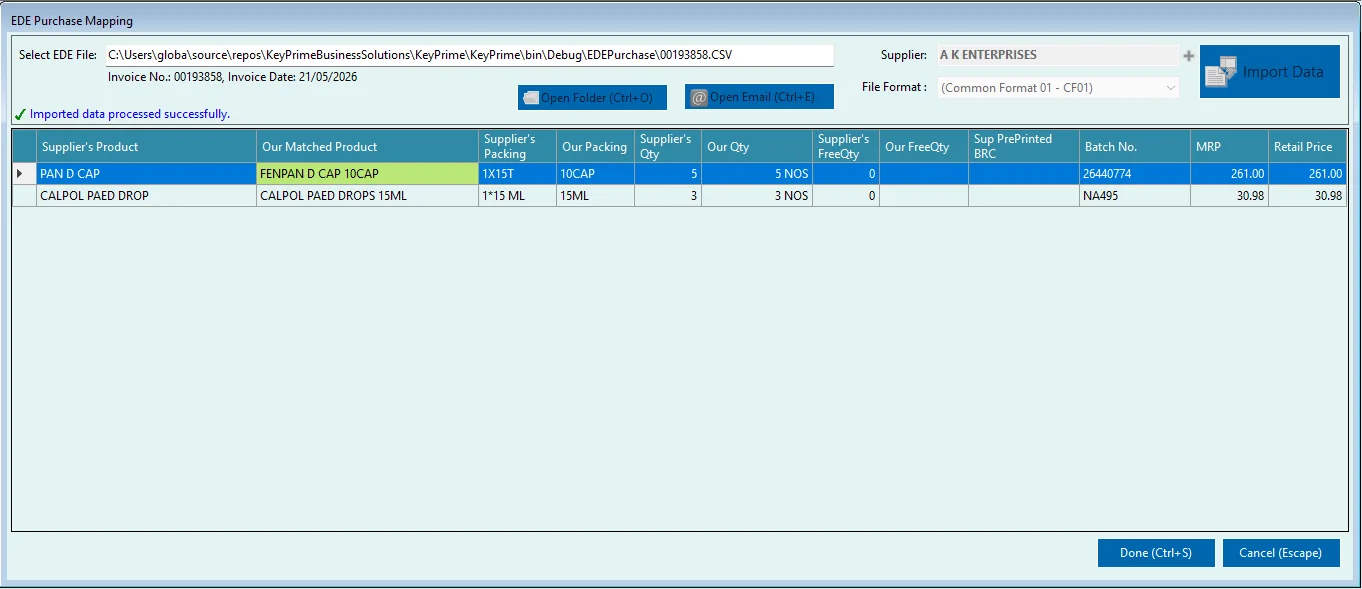
The EDE Purchase Mapping screen opens. Here you bring in the supplier's file and match its products with yours.
To use a CSV file you have downloaded, click Open Folder, or press Ctrl+O, and pick the file.
To take the bill straight from your email, click Open Email, or press Ctrl+E. The Mail Reader Utility opens.
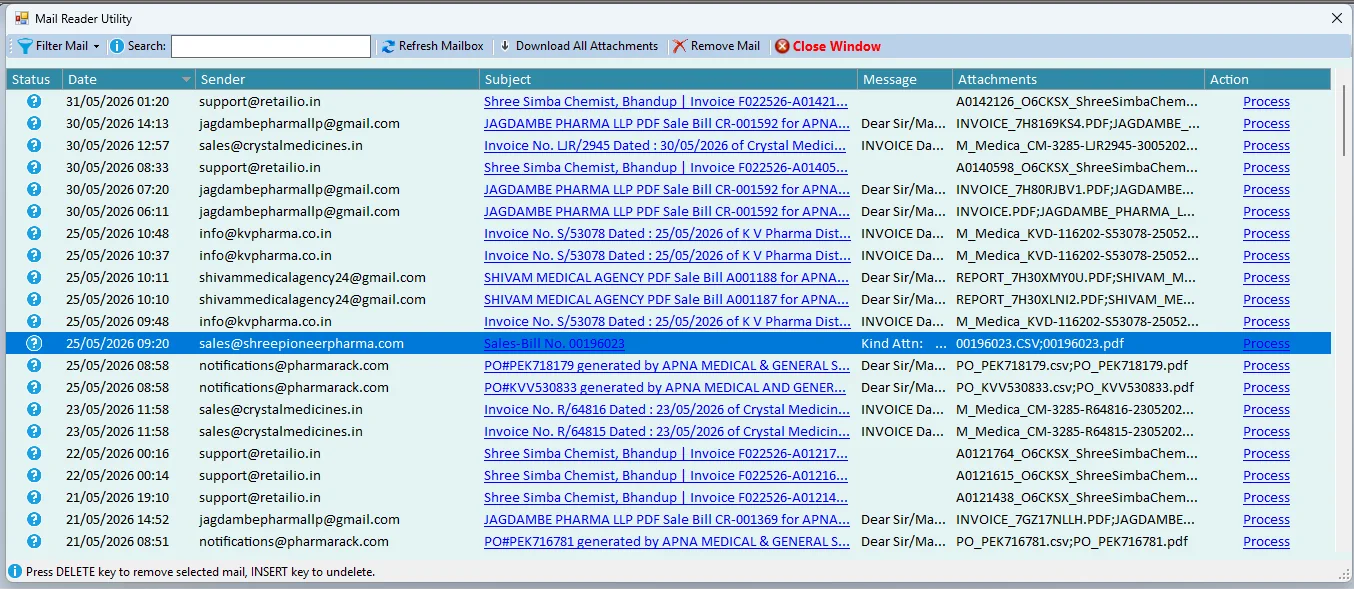
Select the supplier's email, and click Process in the Action column. KeyPrime downloads the CSV file and returns to the mapping screen.
3. Supplier and file format
For the first bill from a sender, select the Supplier Name and the File Format. To create a new supplier, press F2.
4. Map products
KeyPrime matches the supplier's products with your products. Each line shows the supplier's product, and Our Matched Product next to it.
For a line that is not matched, move to Our Matched Product and press Enter. Pick the suggested product, or type a keyword to narrow the list. Then press Enter to confirm.
Made a wrong match? Press Delete to remove the mapping. If the product is new to you, press F2 to create it.
- Press Delete to remove a wrong mapping
- Press F2 to create a new product
- Map every line before you go on
5. Check and save
When every product is mapped, click Done, or press Ctrl+S, to go back to Purchase Invoice.
Check the supplier name, invoice number, products, tax amounts and net amount against the supplier's bill.
Press Ctrl+S to save. Write the new voucher number on the supplier's bill, and print barcode labels from the window that opens.
Keys at a glance
| Press | To |
|---|---|
| Ctrl+I | Open Online Purchase |
| Ctrl+O | Open a CSV file |
| Ctrl+E | Open the Mail Reader Utility |
| Enter | Map a product |
| Ctrl+S | Done, then save the bill |
More detail, with every option of the screen, is in the Knowledge Center: read the full guide.
More lessons
- How to make a retail bill in KeyPrime
- How to make a GST wholesale (B2B) invoice in KeyPrime
- How to enter a purchase bill with batch and expiry
- How to generate purchase orders automatically
- How to prepare GST returns and export GSTR-1 from KeyPrime
- How to set up the KeyPrime 360 mobile app
- How to send bills on WhatsApp and e-mail from KeyPrime