How to set up the KeyPrime 360 mobile app
KeyPrime 360 puts your business on your phone and brings orders from the app into KeyPrime. This lesson covers the one-time set-up and billing the orders.
For: Owners and administrators setting up the KeyPrime 360 app, and billing staff who bill app orders. Shown in KeyPrime 7.3.4.7.
What you will learn
- Register your company for the app once
- Send the app to a phone by QR code or link
- Give a user access to the mobile app
- Bill orders that come from the app
1. Register your company
First, register your company, just once. Open Configuration Setting, on the Application tab, and click Register for Mobile App. Enter the one-time code that KeyPrime sends. After that, About KeyPrime, under Trader, shows your Client Code. App users need this code to connect.
- Open APPLICATION > Configuration Setting > Application
- Click Register for Mobile App
- Enter the one-time code (OTP) that KeyPrime sends
- See your Client Code in APPLICATION > About KeyPrime > Trader
2. Install the app
Next, put the app on a phone. Open APPLICATION, then Download Mobile App (KeyPrime 360). You can also press Ctrl+F1 and type its name.
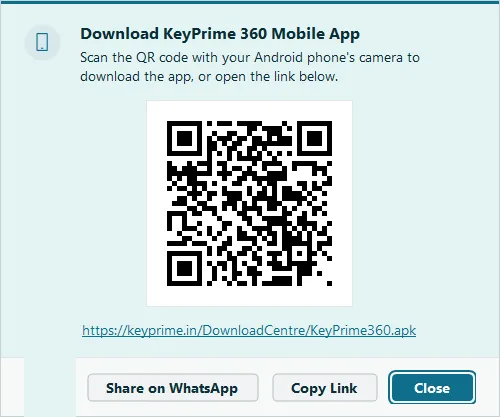
This window gives the download link for the Android app in three ways.
If the user is with you, scan the QR code with the phone's camera.
Or click Share on WhatsApp to send the download link to the user.
Or click Copy Link, or press Ctrl+C, and paste the link in any message.
On the phone, install the app. When the app asks for your business, enter your Client Code.
- Open the link, or scan the QR code
- Install the app on the Android phone
- When the app asks for your business, enter your Client Code
3. Give users access
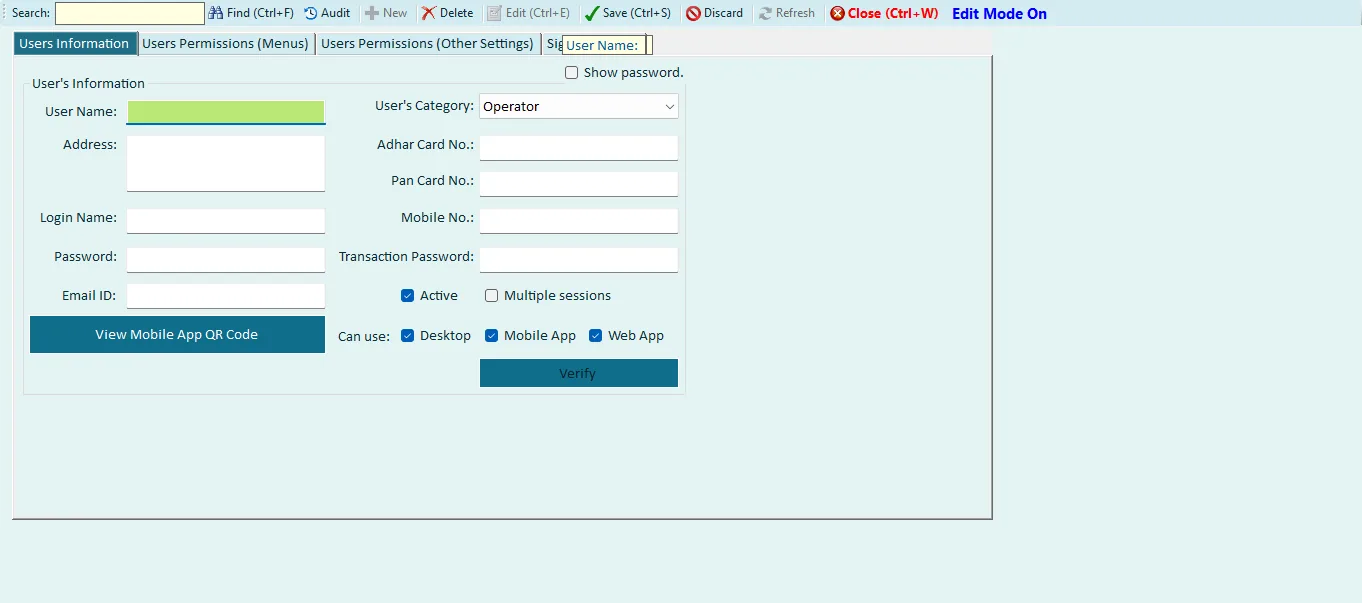
Now give each app user access. Open User's Right Management, and create a user for each person who will use the app.
In User's Category, choose the category that fits: Salesman, Doctor, Patient or Delivery Boy.
Then allow the mobile app for that user. Here, under Can use, tick Mobile App.
Press Ctrl+S to save the user.
4. Bill app orders
Orders and prescriptions from the app come straight into KeyPrime, so you do not type them again. In Counter Sale, an amber bell with a count shows that app orders are waiting. Start a blank counter, import the order, check the bill and save it as usual.
- Open Counter Sale (F4)
- Look for the amber bell with a count badge
- Start a blank counter and import the order into it
- Check the bill and save it as usual
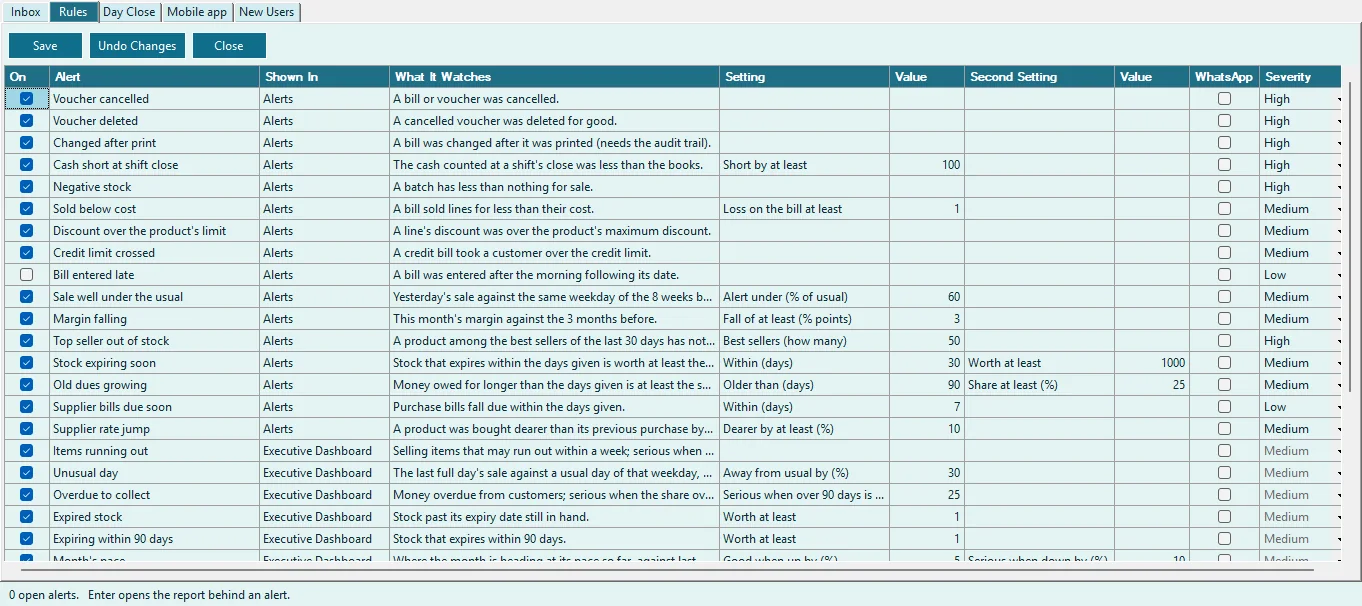
B2B quotations and orders appear in Regular Sale, with its own bell. The same list is also on the Mobile app tab of Alerts. Select an order and press Enter, or click Bill It.
Keys at a glance
| Press | To |
|---|---|
| Ctrl+F1 | Find Download Mobile App |
| Ctrl+C | Copy the download link |
| Ctrl+S | Save the app user |
| F4 | Bill app orders in Counter Sale |
| Enter | Bill It from Alerts |
More detail, with every option of the screen, is in the Knowledge Center: read the full guide.
More lessons
- How to make a retail bill in KeyPrime
- How to make a GST wholesale (B2B) invoice in KeyPrime
- How to enter a purchase bill with batch and expiry
- How to import a supplier's bill instead of typing it
- How to generate purchase orders automatically
- How to prepare GST returns and export GSTR-1 from KeyPrime
- How to send bills on WhatsApp and e-mail from KeyPrime