How to make a GST wholesale (B2B) invoice in KeyPrime
Regular Sale is the screen for invoices to distributors, stockists, wholesalers and institutions. This lesson goes from the customer and salesman to a saved GST invoice.
For: Sales and accounts staff who bill distributors, stockists, wholesalers and institutions. Shown in KeyPrime 7.3.4.7.
What you will learn
- Open Regular Sale with Alt+L
- Select the customer and the salesman
- Add references with Ctrl+O
- Add products, check the totals and save
- Import a delivery note, quotation or order
1. Open Regular Sale
Press Alt+L, or open the SALES menu, then Regular Sale (B2B).
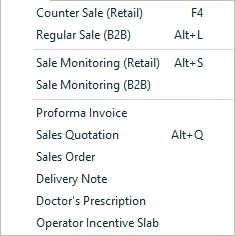
Use Regular Sale for distributors, stockists, wholesalers and institutions. Retail prices usually include GST, but B2B bills usually use tax-exclusive rates.
2. The screen
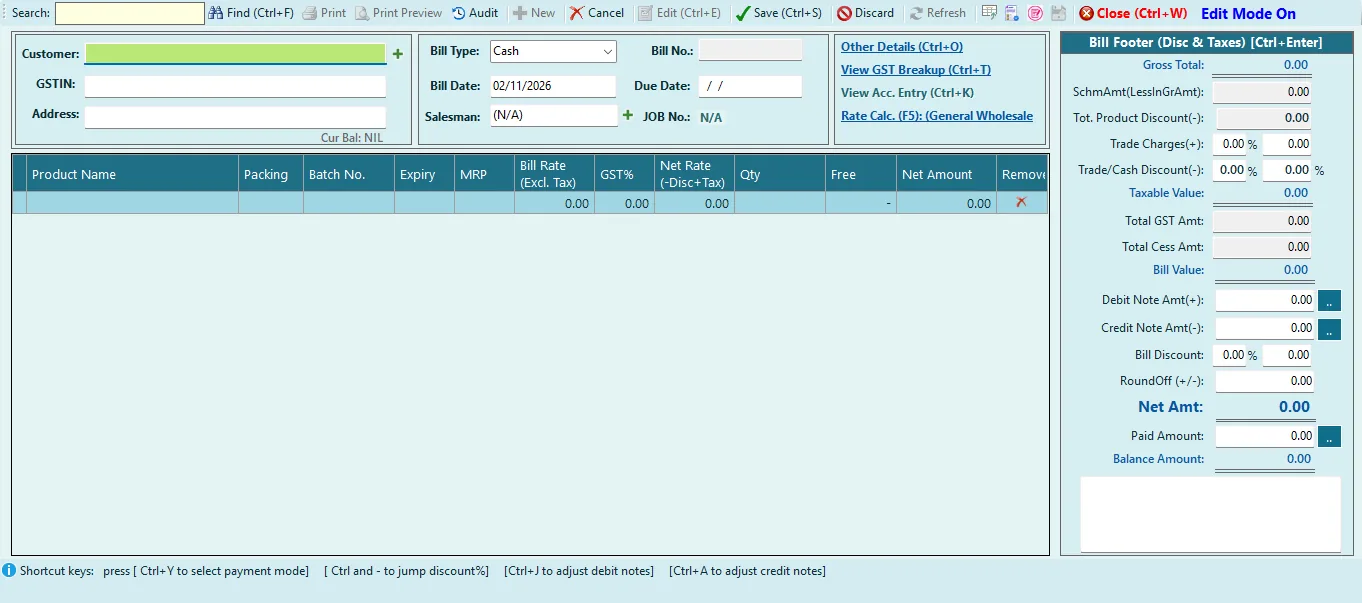
This is the Regular Sale (B2B) screen. It has three main parts.
At the top are the customer and the bill details.
In the middle is the product grid. Notice the Bill Rate column: it is excluding tax.
On the right, the Bill Footer shows the totals: taxable value, GST, bill value and net amount.
3. Customer and details
Select the customer. If the customer is new, select ADD NEW RECORD (Press F2) and create the account.
Then enter the Salesman and the other bill details.
For the PO number, delivery note number, quotation number or transport details, click Other Details, or press Ctrl+O.
4. Products and save
Now add the products in the grid, one line for each product.
Check the invoice totals in the footer: the bill value, any bill discount, and the Net Amt.
Press Ctrl+S to save the invoice, or Ctrl+P to save and print.
5. Import instead of typing
You can also import instead of typing. From the Navigation Bar, choose Import Delivery Note, Import Sales Quotation or Import Sales Order. Select, and click Import. Then add more products if needed, and save.
- Import Delivery Note: one or more notes, with all their products.
- Import Sales Quotation: one quotation; the items in stock come in.
- Import Sales Order: an order taken in the KeyPrime360 app.
- Click Import, add more products if needed, and save.
Keys at a glance
| Press | To |
|---|---|
| Alt+L | Open Regular Sale |
| F2 | Add a new customer |
| Ctrl+O | Other Details |
| Ctrl+S | Save the invoice |
| Ctrl+P | Save and print |
More detail, with every option of the screen, is in the Knowledge Center: read the full guide.
More lessons
- How to make a retail bill in KeyPrime
- How to enter a purchase bill with batch and expiry
- How to import a supplier's bill instead of typing it
- How to generate purchase orders automatically
- How to prepare GST returns and export GSTR-1 from KeyPrime
- How to set up the KeyPrime 360 mobile app
- How to send bills on WhatsApp and e-mail from KeyPrime