How to enter a purchase bill with batch and expiry
Every supplier's bill goes into Purchase Invoice, with batch, expiry, free quantity and rates. KeyPrime warns you about short expiry and rate changes while you enter it.
For: Store, purchase and accounts staff who enter suppliers' bills. Shown in KeyPrime 7.3.4.7.
What you will learn
- Open Purchase Invoice with F3
- Enter the supplier and invoice details
- Enter batch, expiry, free quantity and rates
- Use the expiry and rate alerts
- Check the net amount and save
1. Open Purchase Invoice
To open Purchase Invoice, press F3. You can also use the menu: PURCHASE, then Purchase Invoice.
2. Supplier and invoice
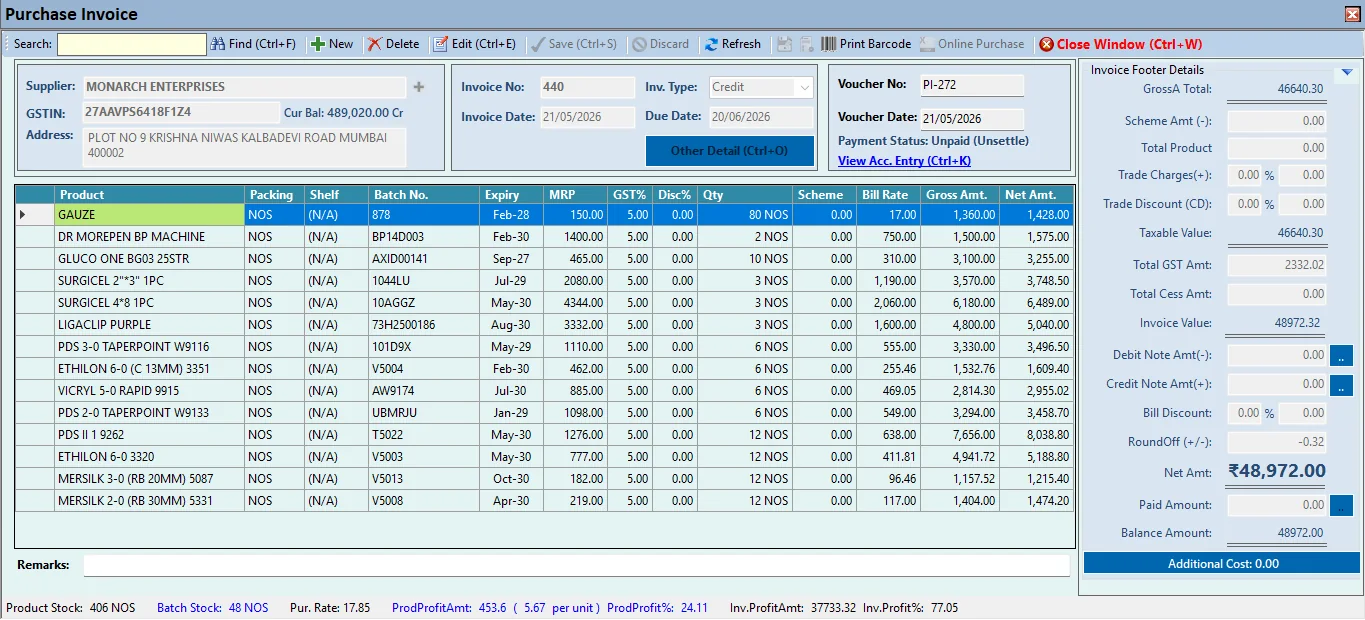
This is the Purchase Invoice screen. It adds the stock, records the batches and rates, and posts the bill to the supplier's account.
Start with the header. Enter the Supplier, the Invoice No., the invoice type, the Invoice Date and the Due Date.
3. Products and batches
Now type the product name in the grid and select it from the list. If the product does not exist yet, press F2 to create it.
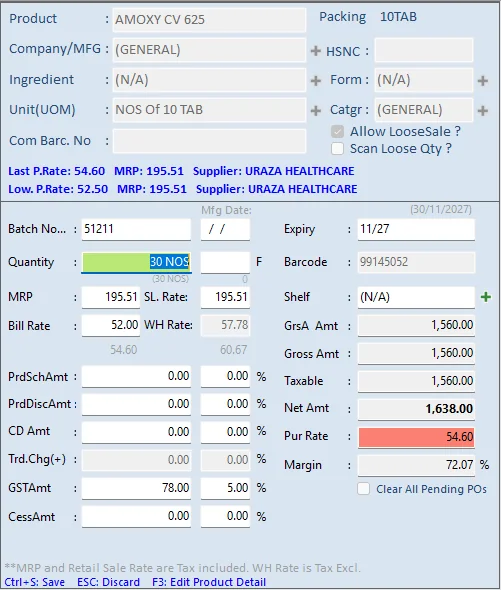
The product detail window opens on the right. Enter the Batch No. printed on the pack, and the Expiry as month and year, such as 11/27.
Enter the billed Quantity. Enter any free goods in the box marked F, next to it.
Enter the MRP, the SL. Rate you sell at, and the supplier's Bill Rate. MRP and the selling rate include tax. WH Rate does not.
Then enter any scheme and discount on this line, and check the GST rate.
When KeyPrime asks Is Data OK?, press Enter and go on to the next product. To correct a line later, move to its row and press Enter.
4. Alerts while you buy
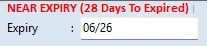
KeyPrime also helps you buy well. If the supplier sends stock close to expiry, you see a Near Expiry alert.
If the rate is higher than other suppliers have charged before, a high purchase rate alert appears, with the lowest earlier rate.
The product detail window shows the last and the lowest purchase rate, so you can compare before you accept the rate.
5. Footer and save
When all the products are in, fill in the footer: trade discount, cash discount, debit and credit note adjustments, and other charges.
Check that Net Amt. matches the supplier's bill. If it does not, compare rate, quantity, free quantity, discount and GST line by line.
The status bar shows the estimated profit for the product and for the whole invoice.
Press Ctrl+S to save. KeyPrime gives the bill a voucher number and opens the barcode label window. Write the voucher number on the supplier's bill.
Keys at a glance
| Press | To |
|---|---|
| F3 | Open Purchase Invoice |
| F2 | Create a new product |
| Enter | Confirm or reopen a line |
| Ctrl+S | Save the bill |
More detail, with every option of the screen, is in the Knowledge Center: read the full guide.
More lessons
- How to make a retail bill in KeyPrime
- How to make a GST wholesale (B2B) invoice in KeyPrime
- How to import a supplier's bill instead of typing it
- How to generate purchase orders automatically
- How to prepare GST returns and export GSTR-1 from KeyPrime
- How to set up the KeyPrime 360 mobile app
- How to send bills on WhatsApp and e-mail from KeyPrime